Your rep now reports back
The email reporter is on for every new Guuey rep: it emails you when a visitor asks for a person, and it mails you a short report after each conversation.
Read as .md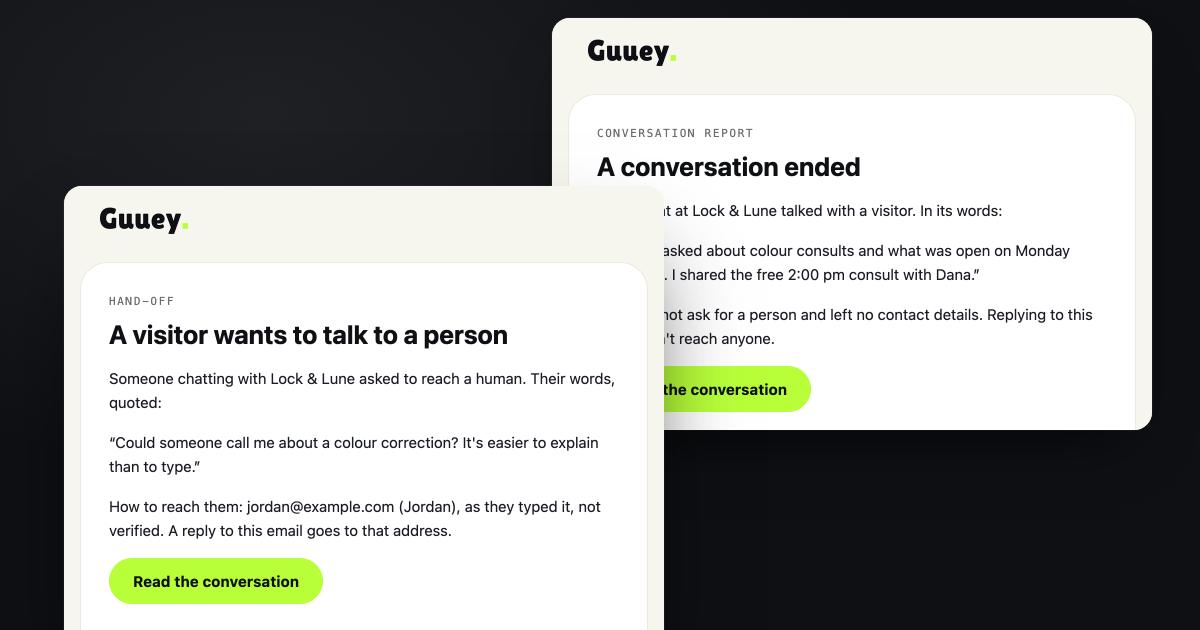
The email reporter is on for every new rep you hire on Guuey: it emails you when a visitor asks for a person, and it mails you a short report after each conversation. It is for anyone whose rep answers questions on their landing page and who wants to hear what it heard without sitting in the console.
Nothing needs switching on. To see it, or to change who gets the mail, sign in at platform.guuey.com and open your rep, then pick Tools in the sidebar. The Email reporter panel on that page shows where the mail goes (your login email, to start), and its Add an address field takes up to 5 more people, such as a cofounder or the inbox your sales team shares.
Two kinds of mail
The first is the hand-off. When a visitor asks your rep for a person, the mail goes out as they ask. A conversation sends it once. Its subject is your rep’s name followed by “a visitor asked for a human”, and the body quotes the visitor’s own question, says how to reach them if they told the rep, and links to the conversation. That is the one to answer first: a visitor asked for a person, and you are the person.
The second is the report, and it comes after every conversation, whether or not anyone asked for a person. It carries a short summary and says whether the visitor wanted a person. If they said how to reach them, the report passes that on as well. Its subject reads “a conversation report” after your rep’s name, so one inbox rule can file them all in a folder of their own.
If the visitor left a usable email address, replying to either mail writes to them. The mail marks that address as typed by the visitor and not verified, and when there’s no address to reply to, it says so.
Who gets them
Your login email gets both mails unless you untick it in the panel. Every address you add gets a confirmation mail first, and nothing else goes to it until someone there confirms. Confirming takes 2 steps: open the link in that mail, then press Confirm this address on the page it opens. The split is deliberate. Some mail systems open the links in an incoming message to check them, and a link that confirmed on its own would let that check sign the address up with nobody involved. The confirmation link stops working after 7 days. Until it is used, the panel lists the address as Waiting for confirmation, and after that as Confirmed.
Anyone on the list can stop the mail themselves. Every mail carries an unsubscribe link, and an added address that uses it shows as Unsubscribed in the panel, so you can see who left.
Reps you hired before
The new default doesn’t reach the reps you already have. A rep you hired earlier keeps the setting it had, so if its reports were never on, it still sends none. Open that rep’s Tools page and tick When a conversation ends to start them. Ticking the box redeploys your rep as a new build, and the box stays locked until that build is live. The switch at the top of the panel does the opposite job: turned off, it stops both mails for that rep.
You can try all of this today, since Guuey is in public beta preview. Hire a rep at guuey.com/hire-a-rep, put it on your page, ask it for a person yourself, and watch for the mail. The tool has its own page at guuey.com/tools/email-reporter if you want to forward it to whoever will be reading these mails.